
How WeCoExist works, how to set up your device, and what to do when a reading looks odd — all in one place.

The WeCoExist device is a small sensor for your classroom bin. It measures how full the bin is, and your class uses that real data to learn graphing, percentages — and to send less to landfill.
From bin to dashboard in four steps — with no school network connection, no logins and no personal data.
A small sensor measures how full your classroom bin is.
The reading travels over a teacher's phone hotspot or guest Wi-Fi for a few seconds. The device never joins the school network.
The reading is stored against your device ID —just a number like wce1. No names, no accounts, no personal information.
Use authentic data to teach measurement, graphs, percentages and sustainability.

You've received your device — you're two short setups away from your first reading.
Fully charge the power bank, then connect it to the device with the Micro USB cable.
Your kit includes two Velcro pairs — one for the device, one for the power bank. One side of each is already attached.
Peel the paper backing off the loose Velcro side, press it to the underside of the bin lid, and attach the device so the two round sensors face straight down into the bin.
Do the same for the power bank, next to the device on the underside of the lid.
With the cable connected and both parts secure on the lid, you're ready to set up Wi-Fi.
Follow the steps above to get the hardware ready. Connect USB powerbank to the device
Install the free ESP BLE Provisioning app by Espressif from the App Store here or Google Play here. Despite the app name, WeCoExist uses its SoftAP Wi-Fi setup mode, not Bluetooth. Open the app and go to settings. Select 'Supported Device Types', then choose 'SoftAP'.
→ From the main menu, select 'Provision New Device' button.
→ Select 'I don't have a QR code'.
→ Select 'Connect'
→ Select wifi starting with 'WCE_' from the Wi-Fi Available networks
→ Select 'Only this time' or similar if prompted
→ Select Next on the pre-entered proof of possession PIN passcode screen
Choose the Wi-Fi network the device should use (e.g. your phone's hotspot) and enter its password. You will see 'Cancel' and 'Provision'. Select 'Provision'. The device will connect to the selected Wi-Fi network and complete its setup. Once done, just select the OK button that will appear.
The Wi-Fi credentials are saved on the device, and the first reading is usually sent shortly afterwards. Open Search Device and enter the Device ID to confirm that the reading has arrived. Setup only needs to be repeated if the Wi-Fi network name or password changes.
Consider using a portable hotspot with a straightforward name and password. This ensures any teacher's phone can connect easily, allowing the device to function seamlessly regardless of who is present.
The sensor measures distance; the dashboard shows a percentage. Here's how one becomes the other.
The ultrasonic sensor measures the empty space between the lid and the top of the rubbish — the same technology as a car parking sensor.
The dashboard compares that empty space with your bin's height (entered when the device was set up). Less empty space means a higher fill %. Example: 30 cm of space in a 100 cm bin = 70% full.
Each reading appears on the history graph. A flatline means no new reading was sent — the graph shows the last known level until the next one. A sudden drop toward 0% usually means the bin was emptied. Both are normal.
Odd reading? There's almost certainly an easy fix — and most of them come down to one thing: the surface of the rubbish isn't flat.

What you'll see
The dashboard shows a very low fill % — or an impossible value — even though the bin clearly has rubbish in it.
Why it happens
→ The echo takes a detour. Normally the pulse travels straight down and back (29 + 29 = 58 cm in the diagram). An angled surface can send it on a detour instead — 29 + 32 + 20 = 81 cm — so it travels further and the device measures more empty space than there really is.
→The echo gets lost. The angled surface scatters the pulse away and nothing comes back. The sensor then reports its maximum range — far more space than the bin even has — which shows up as an impossible fill level below 0%.
What to do
Flatten the top of the rubbish — press the bag down or lay a piece of flat cardboard on top — then wait at least one minute and send another reading. The dashboard keeps the day's most sensible reading.
29 cm of empty space in a 75 cm bin → the dashboard shows 61% full. Normally the pulse travels straight down and back: 29 + 29 = 58 cm. But the angled bag surface sent it on a detour of 29 + 32 + 20 = 81 cm — a longer journey, so the device measured the bin as far emptier than it really is. And if the echo never returns at all, the device reports more space than the bin has — an impossible reading below 0%.
What you'll see
You expected about half full, but the dashboard says nearly full.
Why it happens
Something is sitting high in the bin directly under the sensor — a box, a bag corner, or an angled surface reflecting the pulse early.
What to do
Level the contents, check nothing is stacked directly under the sensor, then send a fresh reading after one minute.
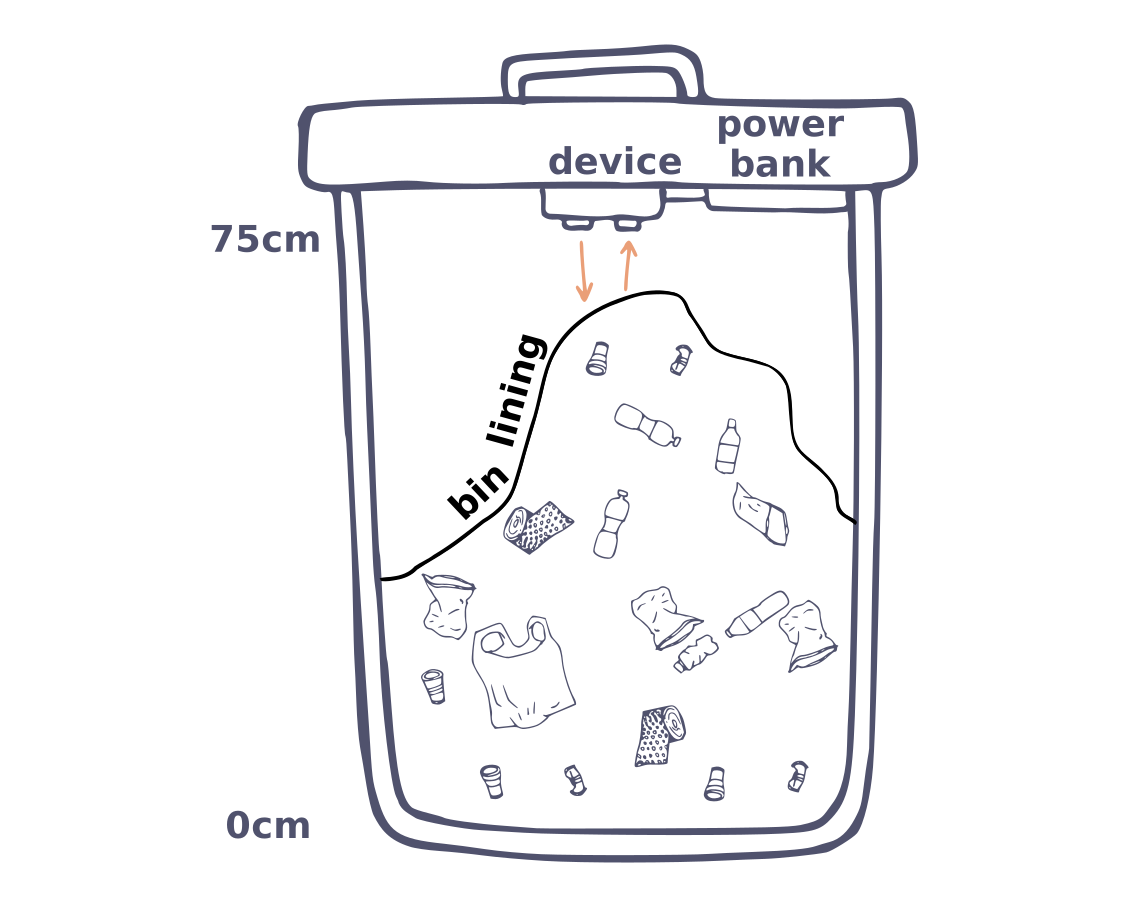
The sensor measures straight down from the lid. If rubbish is piled directly beneath it, the fill % reads higher than the bin's true average; if the sensor sits over a dip, it reads lower. Flattening the surface fixes both.
What you'll see
The bin looks fuller than the percentage suggests.
Why it happens
The rubbish has settled unevenly and the sensor is above a "valley" in the contents; or the pulse found a gap down the side of the bag.
What to do
Same fix: flatten, wait a minute, resend.
An odd reading is a teaching moment, not a failure — ask the class why a sound wave bouncing off a slanted bag might come back late. This is exactly the measurement-error thinking in Investigation 1.
About the program
No. Students type the class device ID into the Search Device page and see their bin. Nothing to install, no passwords, and no student information is collected.
Only one measurement: the empty space between the sensor and the rubbish, plus the time it was sent. Devices are identified by a number (like wce1). That's the entire data footprint.
No — by design. Readings travel over a teacher's phone hotspot or a guest network for a few seconds per reading. Nothing touches the school's managed network, so there's nothing for school IT to install, approve or maintain.
The investigations are written for Years 5–6 and aligned to the Australian Curriculum v9.0 (Mathematics, Science, Digital Technologies and the Sustainability priority). See the Curriculum Links page for every descriptor.
Devices and Ordering
Go to the Order Devices page and register your details. We're currently working with a small number of pilot schools — we'll be in touch about availability.
A bin (works best on a council-style wheelie bin; small indoor bins give coarser readings.), a screen to show the dashboard, and a phone hotspot or guest Wi-Fi for the few seconds a reading takes to send.
Yes — any standard USB power bank works. Follow the manufacturer's care instructions, charge it on a hard surface during school hours, and don't use it if it's damaged or swollen (see the Risk Assessment in Teacher Resources.)
Because the device is only powered for seconds per reading, a full charge typically lasts months of daily classroom readings. Recharge when the indicator shows one unit left — a good job for the class data monitor.
Readings and data
Start a reading by pressing the device's button, or by plugging the USB cable into the powerbank if your device has no switch.
Overall, around 30 seconds. The sensor reads within about 10 seconds of power-on, and the whole send — including connecting to the hotspot — is done within about 30 seconds.
The beep tells you how it went — see What do the beeps mean?
The class and school lines update once every hour. Your device's own reading updates more often, so don't worry if the lines don't move right away — check back after the next hour!
Your device's reading appears straight away. Each hourly point on the average lines is only added after that hour has completely finished, so the averages include every reading from every class — which means they can sit up to an hour behind your device. That's deliberate: it keeps the history stable, so a number students record in their worksheet won't change later.
See Common Reading Issues above — an uneven rubbish surface explains almost all odd values. If readings have stopped entirely: check the USB cable is firmly connected at both ends and the power bank is charged and listen for the beeps when you retry. Pilot schools: if it still won't read, contact us and we'll repair or replace the device — please don't open the enclosure.
The graph carries the last reading forward until a new one arrives. Flat doesn't mean "nothing changed" — it means "no new reading yet." Check the Last Updated time alongside the graph.
Usually one of three things: nobody started a reading that day; the hotspot wasn't on when the reading was sent; or the power bank was flat. Turn on the hotspot, start a reading, and check the dashboard — the reading should appear on the dashboard within a minute.
→ One short chirp — starting a reading.
→ One long beep — success! The reading was sent.
→ Three short beeps — the send failed. Check the hotspot is on, then press the button to try again.
→ Beeping over and over with no pause — the power bank is low. Charge it, or try another one.
Data and Privacy
Each device records how full a bin is at a given time. No personal information is collected. Please see Data & Privacy for details.
Anyone who knows your device ID can view that bin's fill history — the same way the class does. The data contains no names and nothing personal: it's a percentage and a timestamp. Class and School Average lines are calculated the same way.
It runs on 5 volts (the same as charging a phone), has no mains connection at the bin, and is powered for only seconds a day. The full detail is in Classroom Risk Assessment in Teacher Resources.
Tell us what you're seeing and your device ID — we'll get you going.